Eén systeem voor je hele zaak. Zo simpel als het hoort.
Kassa, online bestellen, betalingen, klanten en inzicht — alles zit er al in. Aanzetten en je slaat je eerste bon aan.
14 dagen gratis · Geen creditcard · Geen verkoopgesprek
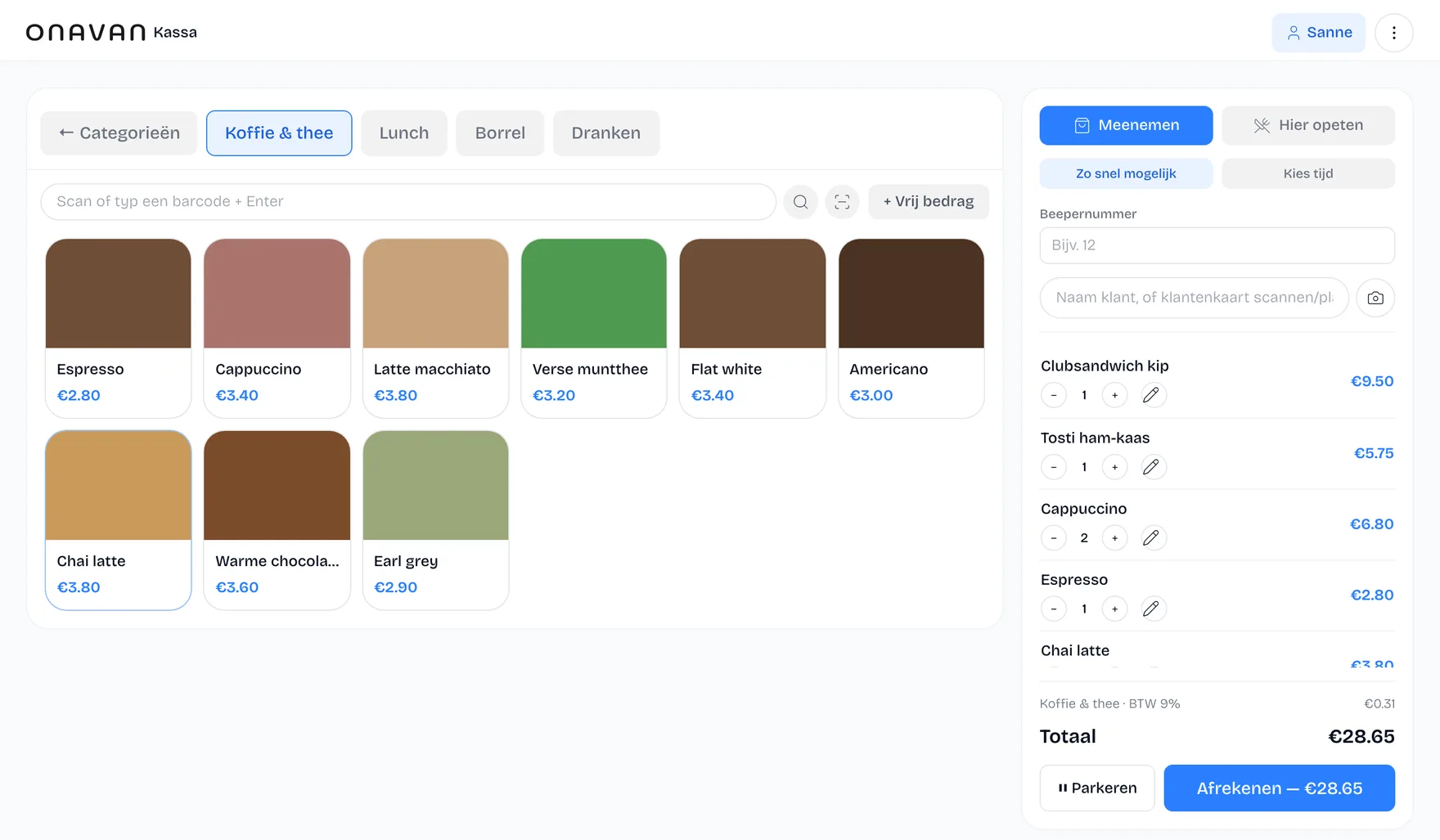
Gebouwd voor horecaondernemers die willen bestellen, afrekenen en beheren zonder drie losse systemen.
Herkenbaar?
Je hebt geen behoefte aan nóg een systeem.
Je kassa is één systeem. Je online bestellingen een ander. Je klanten staan ergens anders. En voor je omzet open je weer een ander dashboard.
- Menu op meerdere plekken aanpassen
- Meerdere inloggegevens
- Bestellingen tussen systemen controleren
- Data op verschillende plekken
- Losse abonnementen
- Dubbel werk
Voor wie
Eén kassa, acht soorten drukte

Sportclubs
Kantine, bardienst en clubfeest — zonder inwerktijd.
Bekijk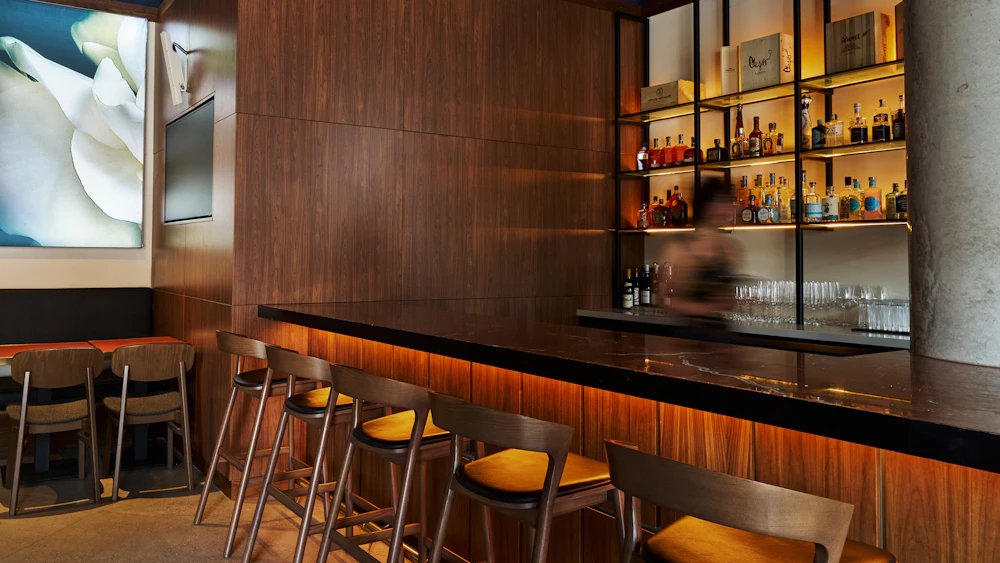
Horeca
Café, restaurant en snelle service in één systeem.
Bekijk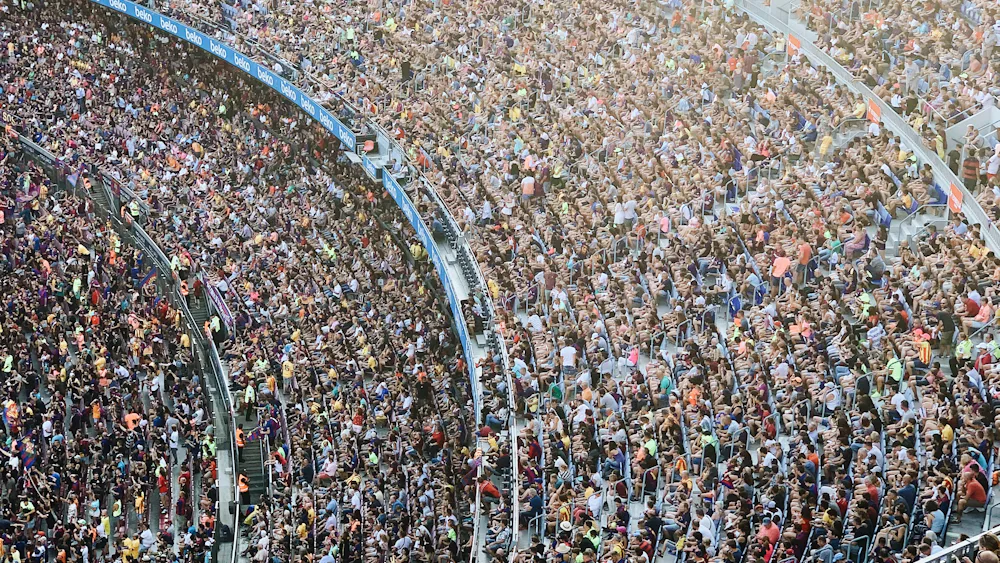
Stadions
Meerdere tappunten, één overzicht, extreme pieken.
Bekijk
Events
Tijdelijke opstellingen die meteen moeten werken.
Bekijk
Community
Klein beginnen, met een kas die klopt.
Bekijk
Festivals
Meerdaags, mobiel en meedogenloos druk.
Bekijk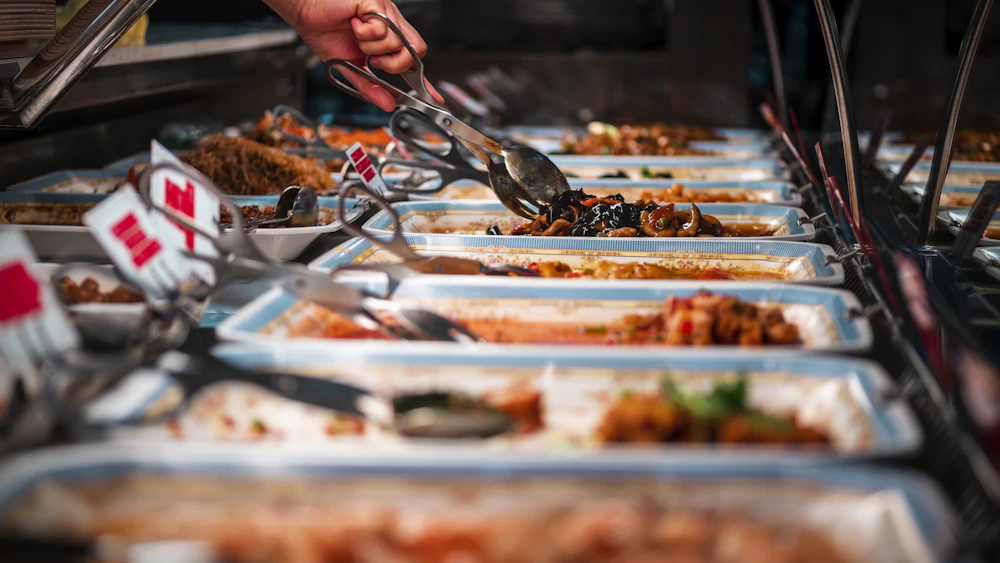
Cateraars
Bedrijfsrestaurants en losse opdrachten, centraal beheerd.
Bekijk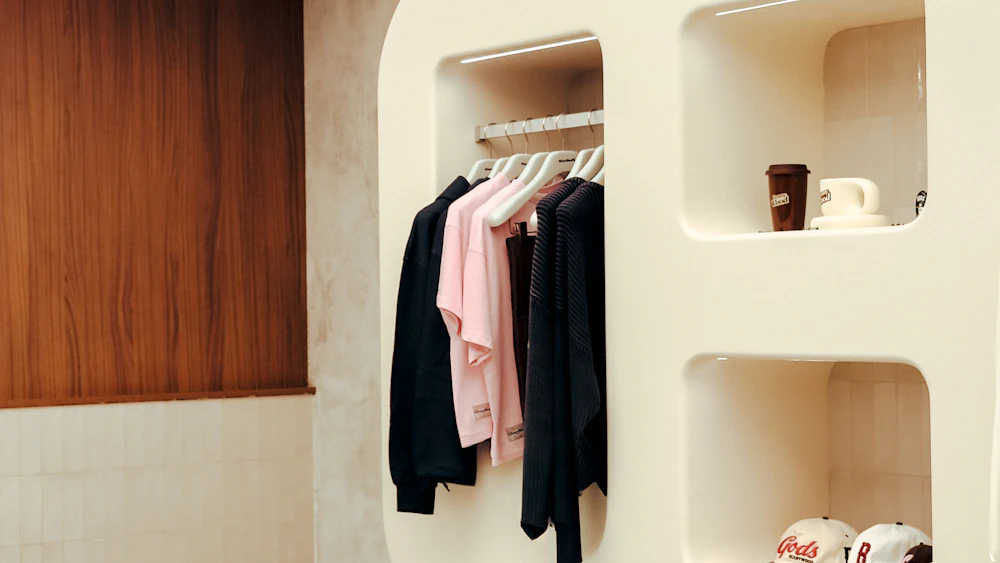
Retail
Afrekenen, voorraad en inzicht in één.
BekijkWat als alles gewoon samenwerkt?
Dat is het idee achter Onavan.

De oplossing
Eén systeem voor je hele zaak.
Je kassa, online bestellingen, bestelzuil, klanten, voorraad en rapportages werken vanuit dezelfde omgeving — met hetzelfde menu en dezelfde prijzen.
Eén menu. Eén inlog. Eén overzicht.
Kassa
Aanslaan en afrekenen aan de balie of mee de zaak in.
Online bestellen
Je eigen bestelwebsite, zonder commissie per bestelling.
Bestelzuil
Gasten bestellen zelf, met hetzelfde menu als aan de balie.
Tafelbeheer
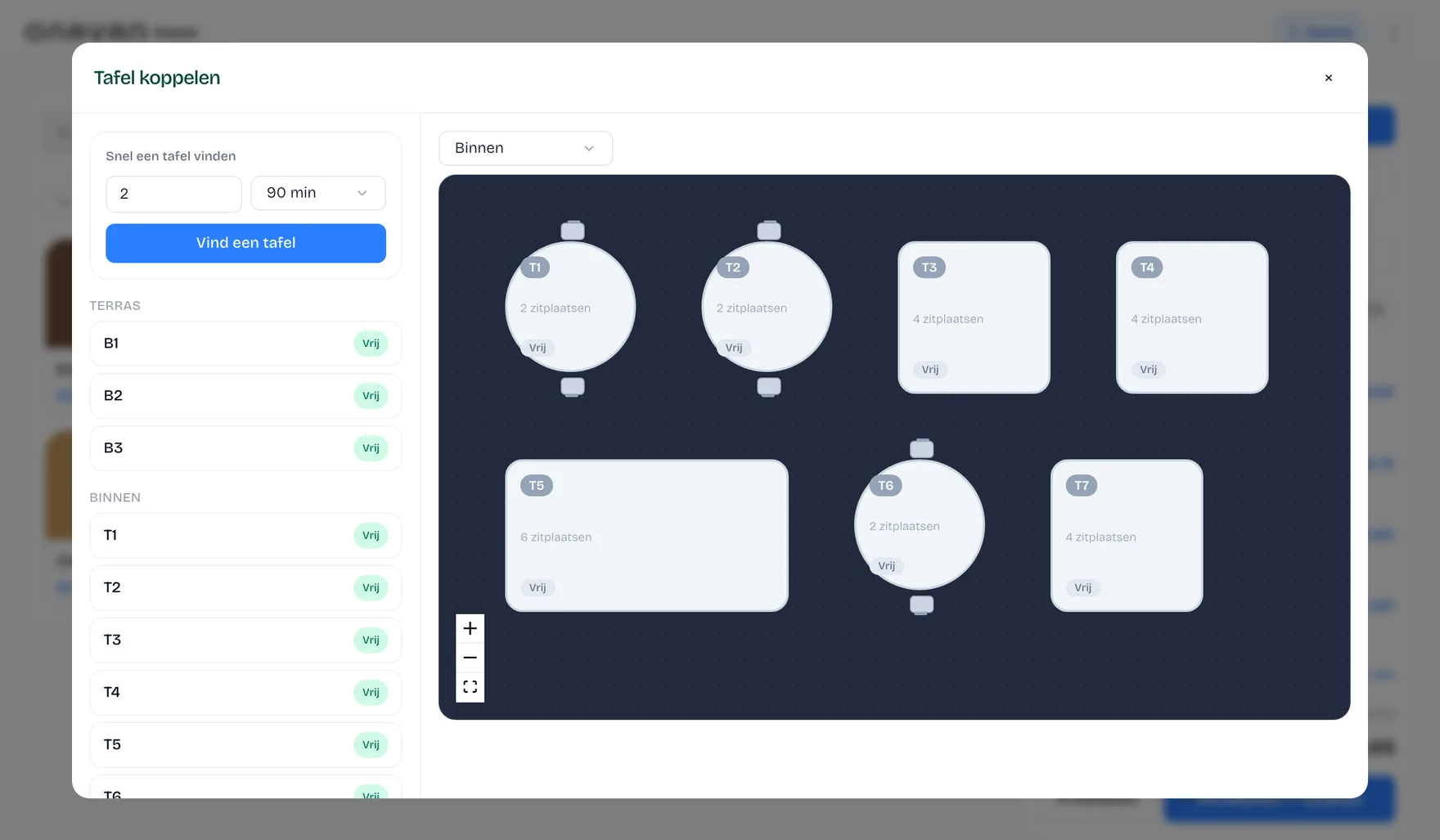
Plattegrond met live status per tafel.
Klanten & spaarpunten
Klantprofielen en punten in eigen beheer.
Voorraad
Voorraad en food cost per gerecht.
Rapportages
Omzet, marge en bestellingen op één plek.
Bekijk alle functiesZo loopt het door
Van bestelling tot betaling. Alles loopt door.
01
Klant bestelt
Online, via QR of in je zaak.
02
Onavan verwerkt
De bestelling komt direct in je workflow.
03
Team werkt
Kassa, keuken en medewerkers werken met dezelfde informatie.
04
Data wordt bijgewerkt
Omzet, bestellingen, klanten en voorraad blijven actueel.
De kassa
Een kassa die gewoon doet wat hij moet doen.
Snel producten aanslaan, tafels beheren, betalingen verwerken en je team laten werken zonder ingewikkelde menu's.
Van gast tot dagafsluiting
Zo loopt één bestelling door je zaak.
Tafel 4 bestelt online, de zuil rekent af, de keuken en de bar krijgen hun eigen bon en de medewerker sluit af aan tafel. Speel de tijdlijn af en zie per moment wie wat doet — en welk deel van Onavan daar dan voor draait.

Wat er op dit moment draait
Online bestellen
Je eigen webshop, in dezelfde kassa.
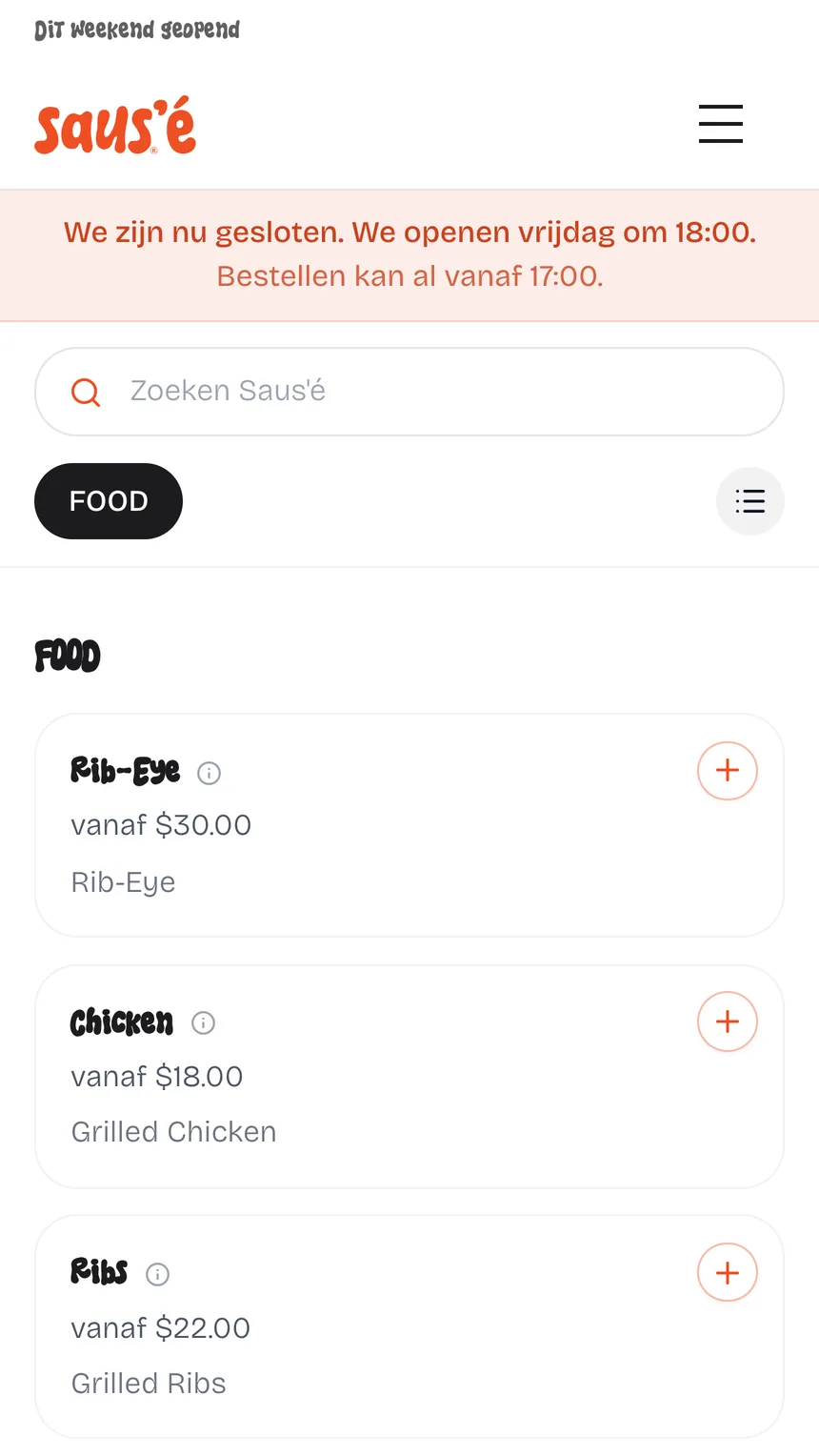
Klanten bestellen op jouw domein, in jouw huisstijl, en rekenen af via Stripe, Mollie of Sentoo. Elke online bestelling valt binnen op dezelfde kassa en hetzelfde keukenscherm als wat je in de zaak aanslaat — geen tweede systeem, geen commissie per bestelling.
Je eigen webshop
Op je eigen domein, in je eigen huisstijl.
Stripe, Mollie en Sentoo
iDEAL, creditcard en lokale methodes — jij kiest je provider.
Binnen op je kassa
Online bestellingen staan tussen je bonnen uit de zaak.
Hetzelfde keukenscherm
Webshop, QR aan tafel en balie op één kitchen display.
Eén menu en voorraad
Prijzen, opties en uitverkocht staan overal gelijk.
Geen commissie
Geen percentage per bestelling aan een bezorgplatform.
Je klantenbestand
Je klanten zijn jouw klanten.
Bouw een eigen klantenbestand op, zie bestelgeschiedenis en beloon terugkerende klanten — zonder tussenpartij die je gasten afschermt.
- Klantprofielen
- Bestelgeschiedenis
- Spaarpunten
- Digitale klantenkaart
- Mailings
- Apple Wallet
- Google Wallet

Inzicht
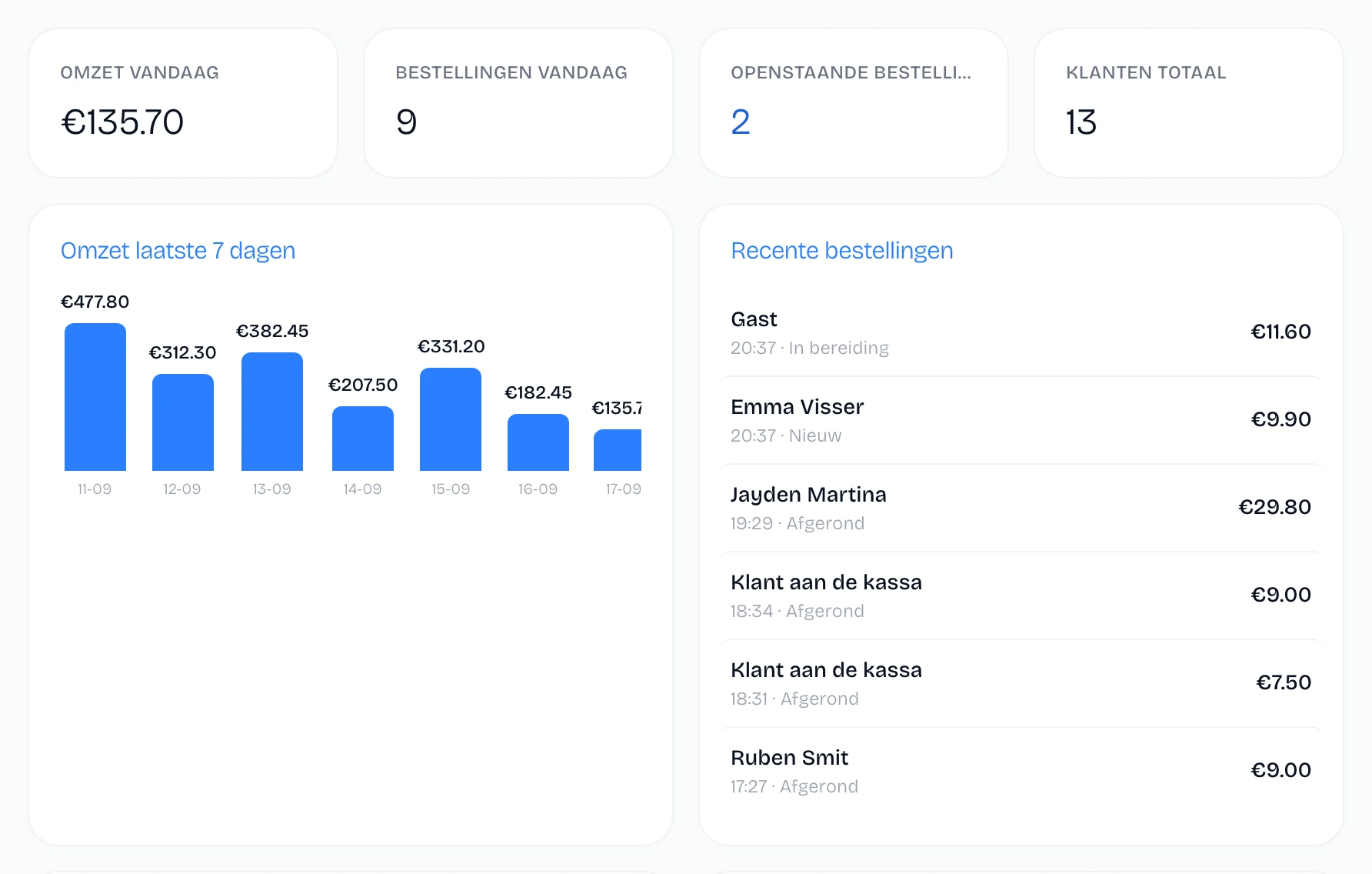
Weet hoe je zaak ervoor staat.
Van omzet en bestellingen tot voorraad en marge. De belangrijkste cijfers staan op één plek, bijgewerkt door elke bestelling die binnenkomt.
- Omzet
- Bestellingen
- Gemiddelde bon
- Marge
- Voorraad
Wat het oplevert
Minder systemen. Minder gedoe. Meer tijd voor je zaak.
Minder dubbel werk
Wijzigingen hoef je niet steeds op meerdere plekken door te voeren.
Meer overzicht
Belangrijke informatie staat op één plek.
Meer grip op klanten
Bouw een eigen klantenbestand op.
Minder software
Combineer belangrijke onderdelen van je bedrijfsvoering.
Bewijs
Geen verkooppraatje. Kijk zelf.
Onavan is een jong platform en we zetten geen verzonnen reviews op onze site. Wat we wél kunnen: je het product laten gebruiken en onze cijfers openbaar maken.
Gebruik de echte kassa
Geen video en geen belafspraak — sla zelf een bon aan in je browser.
Probeer de kassaVergelijk ons eerlijk
Onavan naast andere kassasystemen, inclusief wat wij niet doen.
Bekijk de vergelijkingReken je besparing uit
Zie wat platformcommissie je per maand kost en wat je overhoudt.
Open de calculatorWe zoeken onze eerste tien zaken. Lees hoe we samenwerken
Reken het na
Elke maand commissie betalen over je eigen gasten?
Bestellingen via een bezorgplatform kosten je commissie — ook van vaste gasten die toch wel bij jou hadden besteld. Met een eigen webshop houd je die marge zelf.
Bereken jouw besparingRekenvoorbeeld
- 300 platformbestellingen per maand
- × € 25
- Gemiddelde platformcommissie
- 14%
- Commissie per maand
- € 1.050/maand
Voorbeeld bij een gemiddelde bestelwaarde van € 25. Jouw cijfers invullen kan in de calculator — het resultaat is deelbaar.
Overstappen
Overstappen hoeft geen gedoe te zijn.
01
Probeer Onavan
Bekijk of de workflow bij je zaak past.
02
Richt je omgeving in
Menu, prijzen, opties en instellingen — we importeren je menu met je mee.
03
Test met je team
Draai proef naast je huidige kassa tot het vertrouwd voelt.
04
Ga live
Vanaf dat moment werkt je zaak vanuit Onavan.
Zelf proberen
Probeer de kassa zelf.
Geen demo aanvragen. Geen account nodig om eerst te kijken. Stap achter de Onavan-kassa en ontdek hoe het werkt.
Probeer de kassaWerkt direct in je browser — geen installatie, geen e-mailadres.
Prijzen
Prijzen die meegroeien met je zaak
Je betaalt naar het aantal bestellingen per maand — starten kan al vanaf € 29 per maand.
Starter
Voor startende zaken met regelmatige bestellingen.
€ 29/maand
Tot 300 bestellingen/maand
Bekijk alle prijzen en pakketten
PopulairPro
Voor zaken die willen sturen op cijfers.
€ 75/maand
Tot 1.500 bestellingen/maand
Bekijk alle prijzen en pakketten
Growth
Voor zaken die over Pro heen groeien en meer volume aankunnen.
€ 100/maand
Tot 2.500 bestellingen/maand
Bekijk alle prijzen en pakketten
Maandelijks opzegbaar na de eerste contractperiode
Implementatie en training inbegrepen
Updates zonder meerkosten
Veelgestelde vragen
Wat ondernemers ons het vaakst vragen
Wat kost Onavan?
Vanaf € 29 per maand. De prijs hangt af van je aantal bestellingen per maand — niet van je aantal apparaten. Alle pakketten en zelfs de transactietarieven van betaalproviders staan openbaar op de prijzenpagina.
Kan ik mijn huidige kassasysteem vervangen?
Ja. Bij elke start hoort een implementatie- en trainingssessie: we importeren je menu, richten alles in en je team draait proef naast je oude kassa tot het vertrouwd voelt. Meestal ben je in twee tot drie weken volledig over.
Moet ik nieuwe hardware kopen?
Nee. Onavan draait op gangbare iPads, Android-tablets en telefoons, en werkt met standaard bonprinters via netwerk, USB of bluetooth. Grote kans dat je huidige apparaten gewoon mee kunnen.
Wat gebeurt er als mijn internet uitvalt?
De kassa werkt offline door: bestellingen aannemen en afrekenen blijft werken, en zodra de verbinding terug is synchroniseert alles automatisch.
Kan ik mijn menu importeren?
Ja. Tijdens de implementatie importeren we je menu met categorieën, prijzen en opties, zodat je niet alles handmatig hoeft over te tikken.
Kan ik mijn eigen bestelwebsite gebruiken?
Je krijgt een eigen bestelomgeving in je eigen huisstijl, op je eigen adres. Die is direct gekoppeld aan je menu en je kassa, dus je houdt één menu bij in plaats van twee.
Hoe snel kan ik starten?
Je maakt zelf een gratis omgeving aan en staat binnen een paar minuten achter je eigen kassa. Voor de volledige inrichting van je zaak plannen we daarna een implementatiesessie in.
Kan ik maandelijks opzeggen?
Na de eerste contractperiode (kwartaal of maand) is het abonnement maandelijks opzegbaar, met één maand opzegtermijn.
Kan ik mijn gegevens exporteren?
Ja. Je kunt een export van je gegevens opvragen, ook wanneer je besluit te stoppen.
Overstappen van een ander systeem? Lees de overstapgids
Klaar met software die je zaak ingewikkelder maakt?
Probeer Onavan en ontdek hoe eenvoudig je dagelijkse workflow kan zijn.
14 dagen gratis · Geen creditcard · Geen verkoopgesprek